Connect ChatGPT and Claude to your construction jobs
Ask the assistant you already use about your jobs and get answers from your live WorkHoist figures, and let it log the routine entries, with a person approving the money.

How AI connector (MCP) works in WorkHoist
7 stepsConnect it in three steps
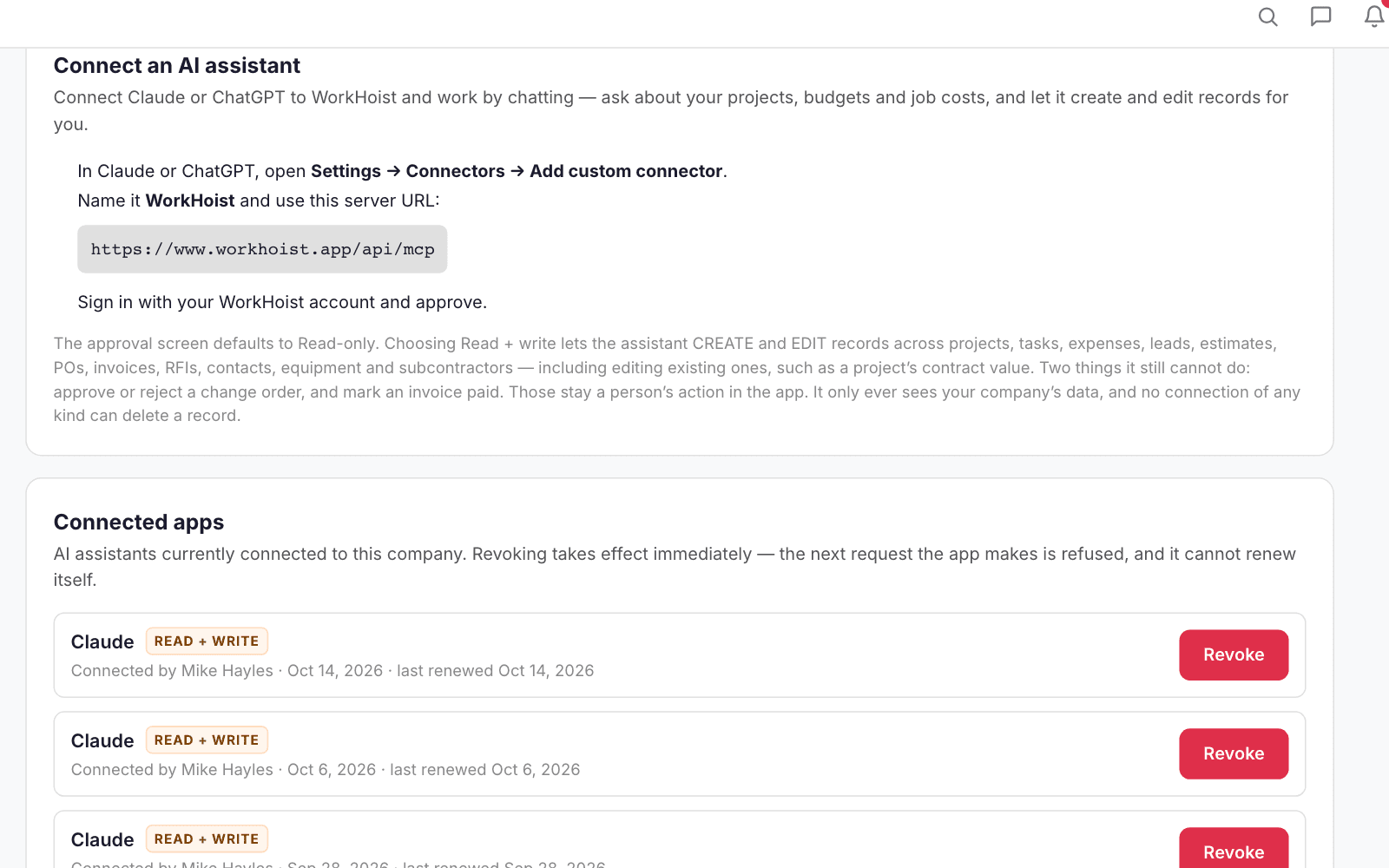
In Claude or ChatGPT, add a custom connector named WorkHoist with your server address, sign in and approve. The approval starts with read access.
Choose read access, or read and write
Connect by signing in, or with an API key that reads, or reads and writes. Read and write lets the assistant create and update records across the jobs. Hand it a bid spreadsheet and it becomes the estimate, the phases and the budget, with the grand total checked against the sheet. From one sentence it drafts an invoice with retainage held, raises a change order, or adds a deal and books the site visit; deals, tasks, POs, RFIs, punch items, daily logs, time entries and Drive links too. It drafts; you send.
Ask in plain English, answered from live figures
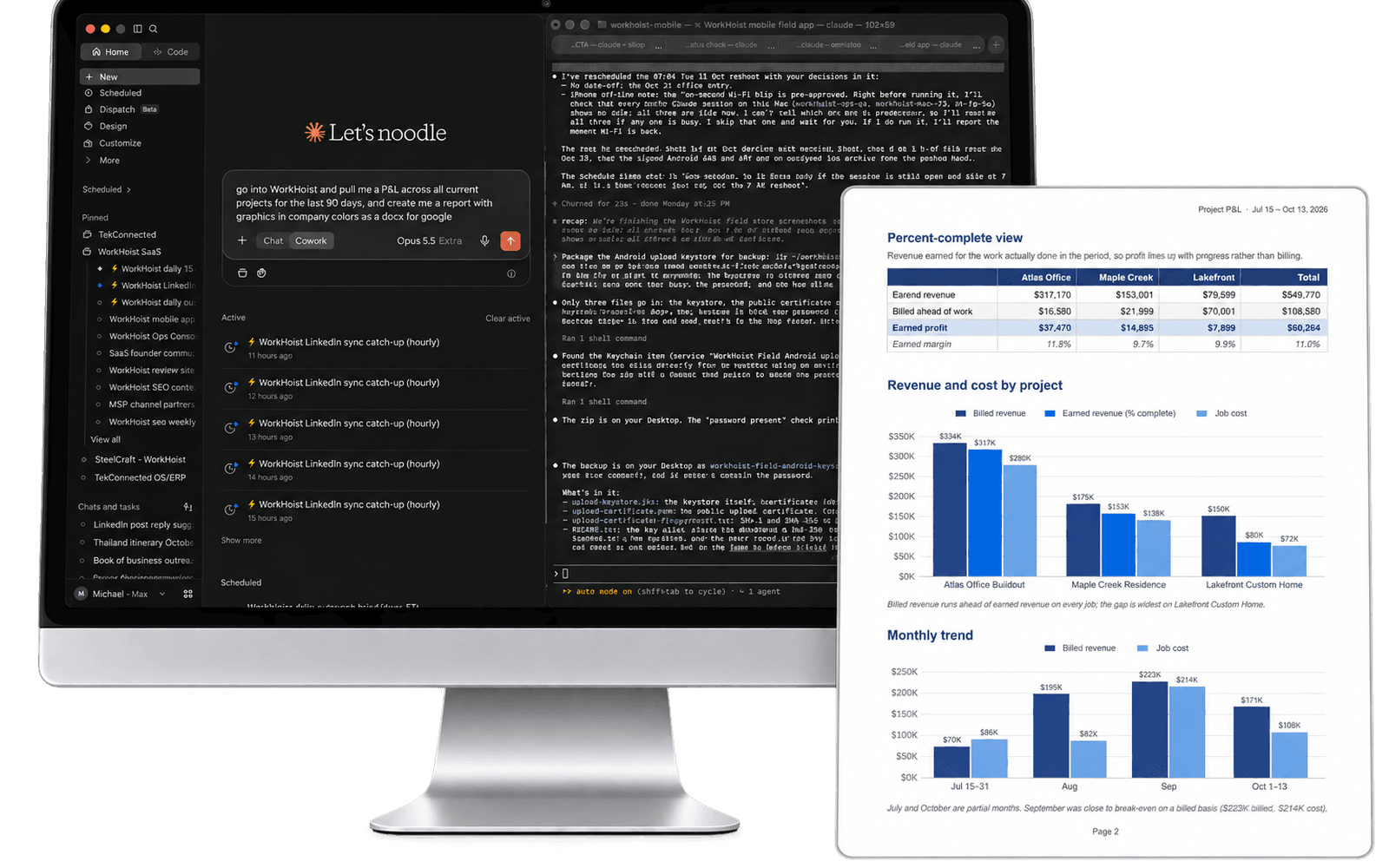
Ask for margin by project, who owes you, or which jobs are over budget, and the assistant reads the numbers from WorkHoist with the app’s own maths. Margin by project is what each job invoiced minus what it cost; the P&L lives in the app. AR aging comes in buckets from current to over 90 days.
Receipts and statements into expenses

Photograph a receipt and say which job it was for; the assistant logs the expense. Hand it a vendor statement and every line becomes an expense on its job, with the card, the cost code and the reference, up to 200 lines at once. Each one waits for approval, as pending, and counts toward the job once somebody approves it.
See every connected assistant
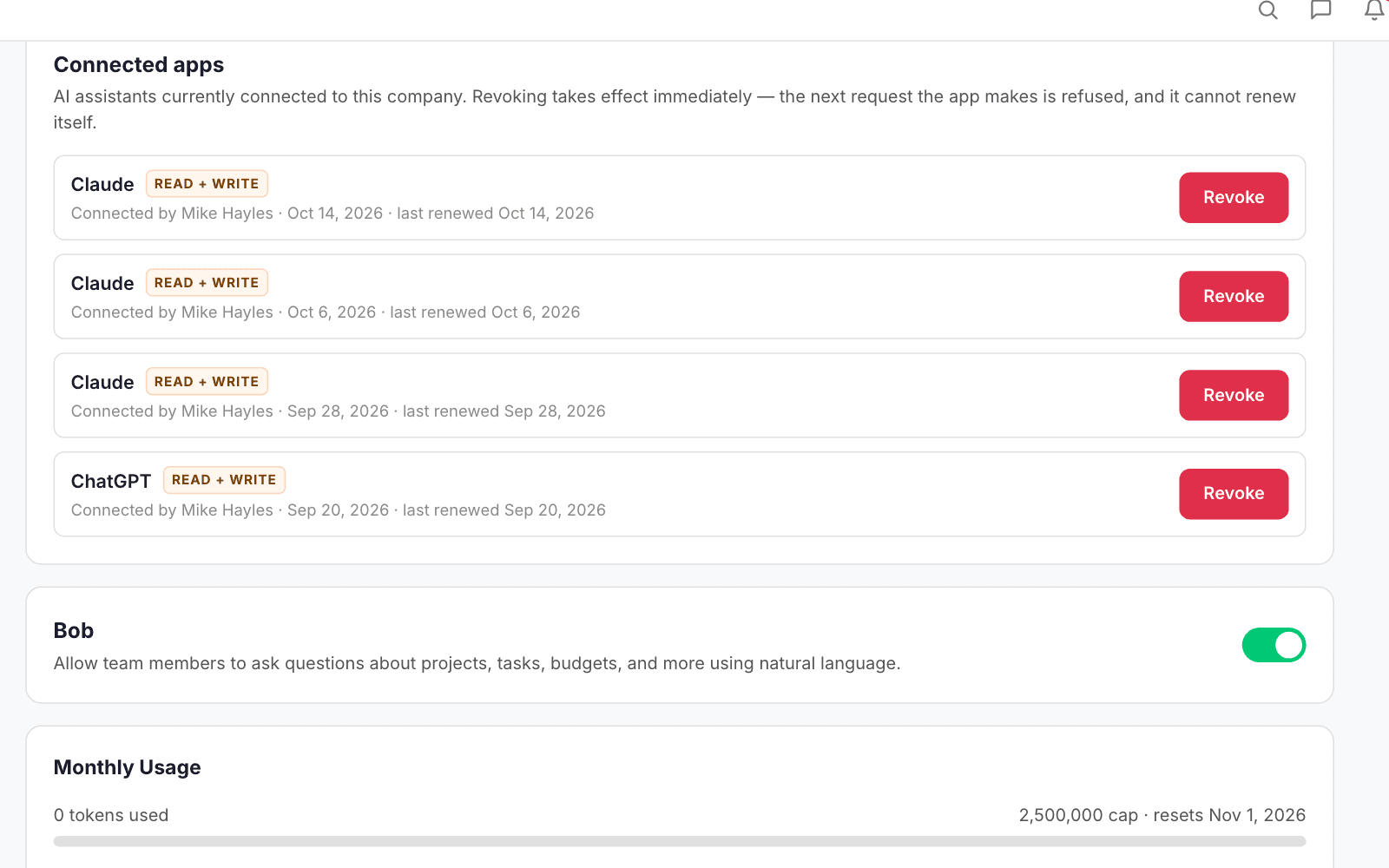
Each connection shows who connected it, when, and whether it reads or reads and writes, with Revoke beside it.
Bob, inside WorkHoist
Bob answers questions about your jobs from your live data, with links to the records, without leaving the app.
Usage you can see
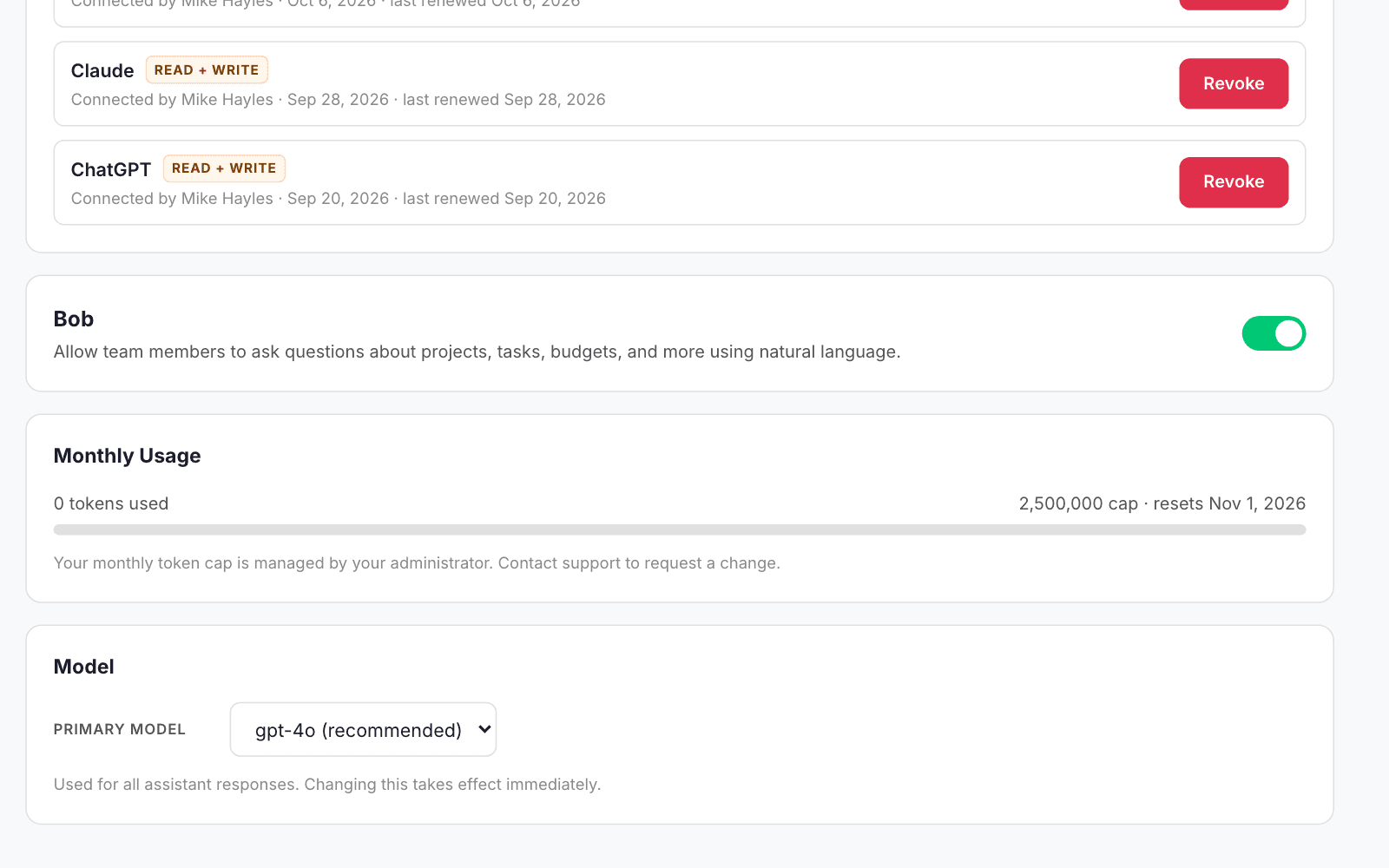
Bob runs on every plan with a monthly usage allowance, shown in Settings with when it resets.