Crew scheduling and capacity planning for contractors
See who is booked on which job, who has room, and the hours actually worked, across every job at once.
How work plan & crew capacity works in WorkHoist
7 stepsPut the right people on the job
Open a job and add the people who work on it. Field crew are added for you the moment they are given a task on it.
Book hours per week on each job
Each job gets a staffing card: who is on it and how many hours a week they are booked. The card shows Fully Staffed once the field hours are covered.
See who has room, day by day
Four tiles sum up the team: utilisation, who is overbooked, who has capacity and the hours scheduled. Below, every person has a row of booked hours against an 8-hour day; open a row to see their tasks and drag one to someone with room.
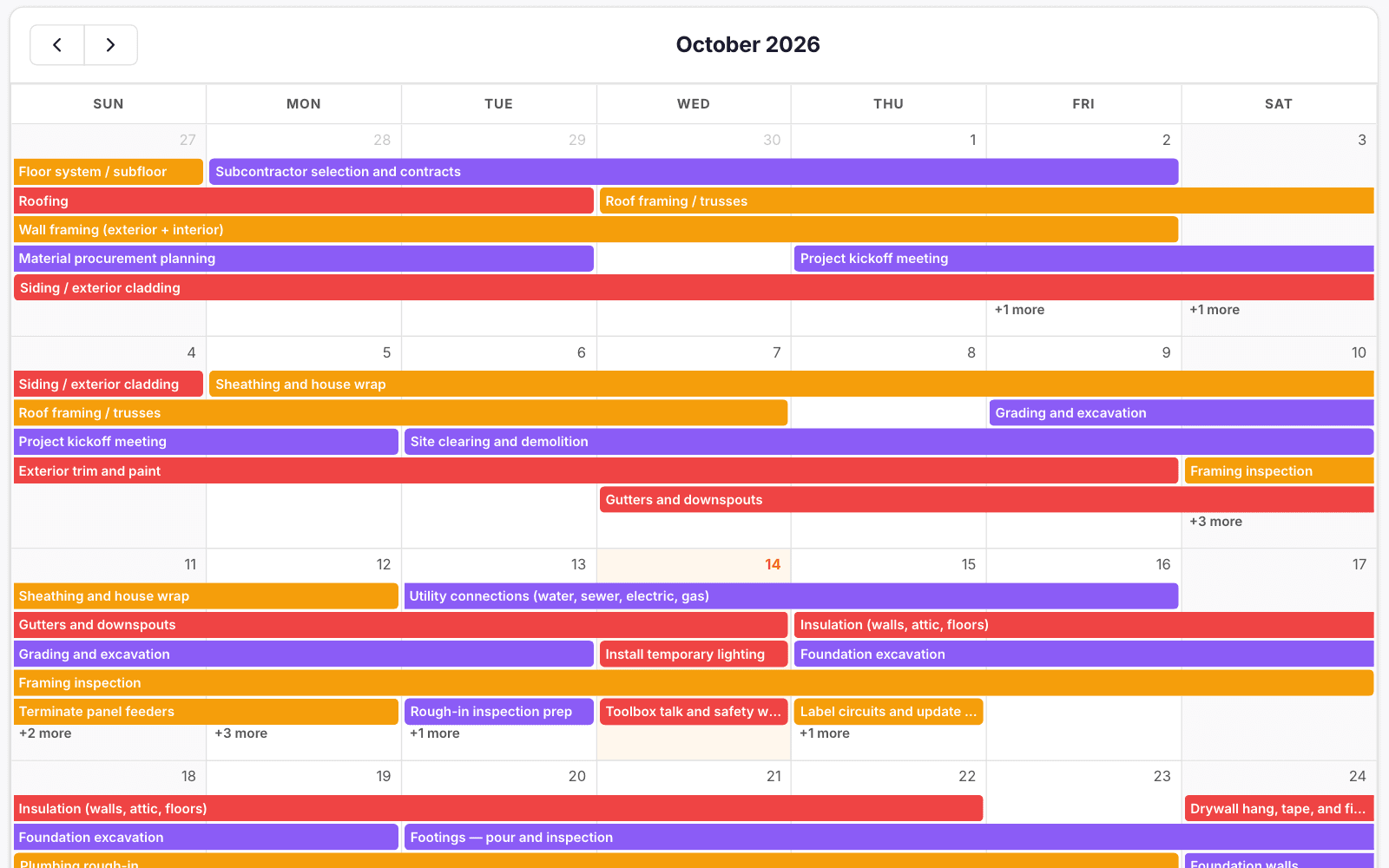
Every job on one calendar
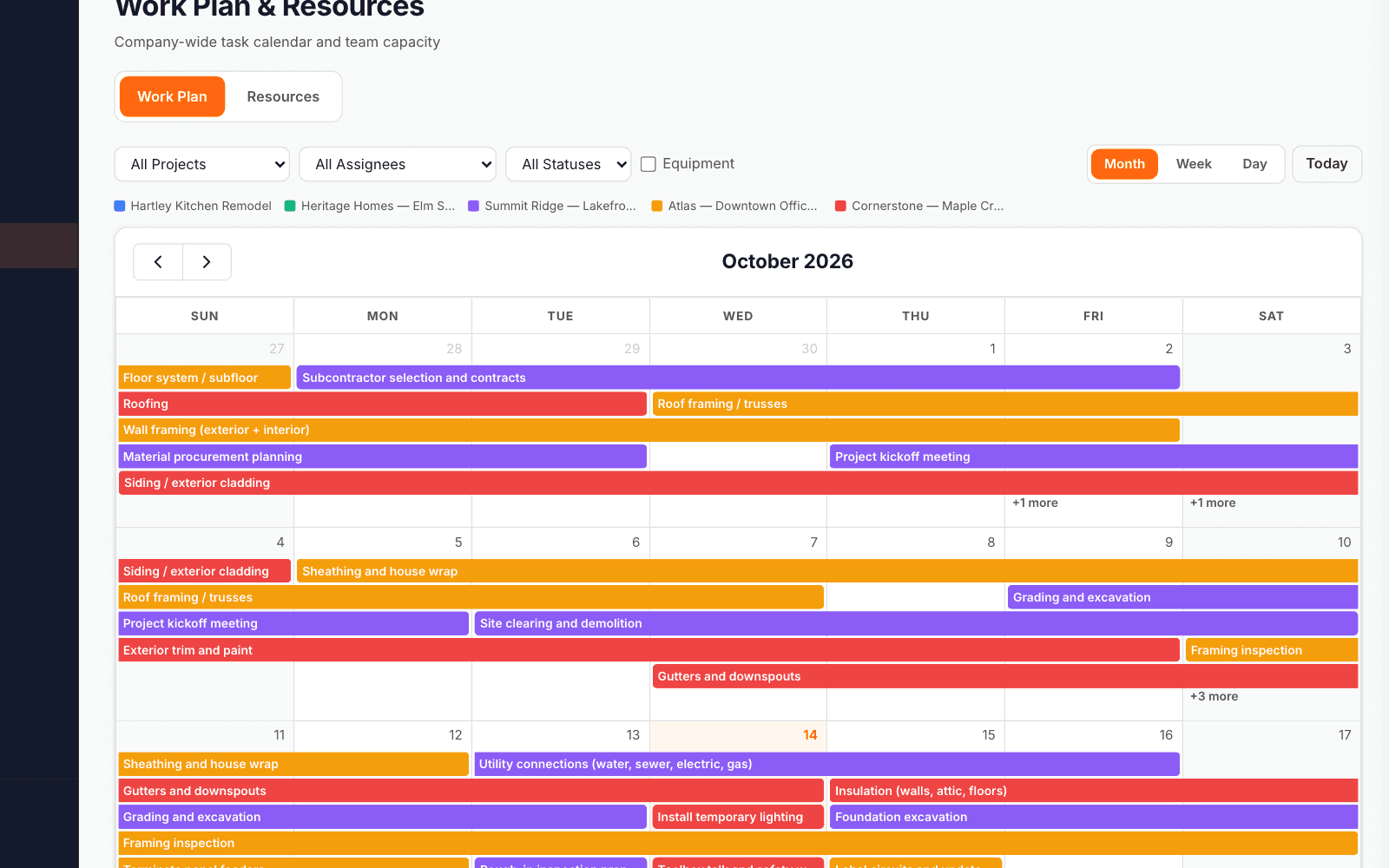
The work plan shows every task across every job by month, week or day, coloured by job. Filter by job, person or status, and drag a task to move it.
Everyone sees their own list
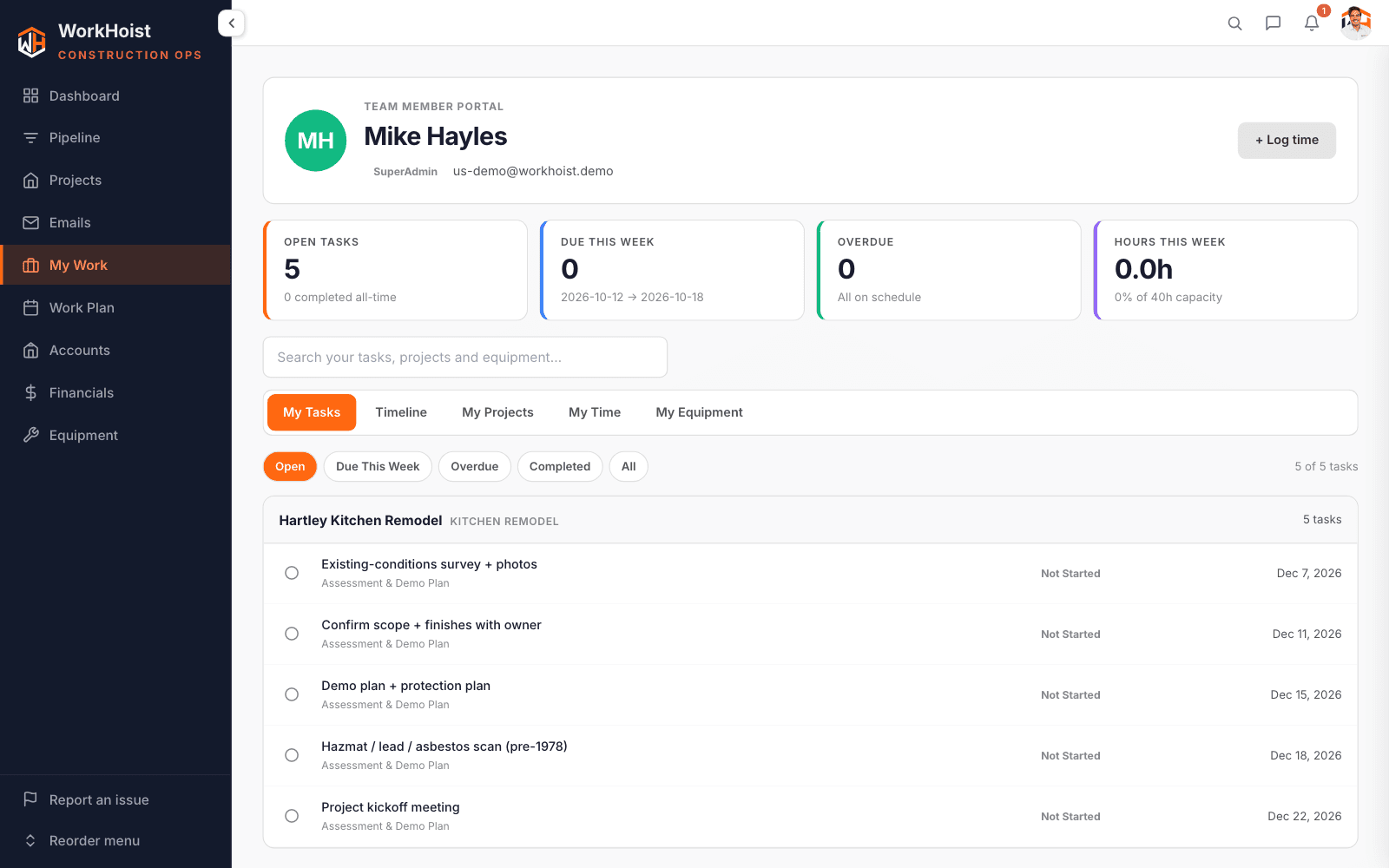
My Work gives each person their tasks across all jobs, with what is open, due this week and overdue, and the hours they have logged this week.
Hours logged against the task
Open a task and log the hours with a note. Field supervisors and electricians log hours on the tasks assigned to them, and they are free seats.
The hours actually worked
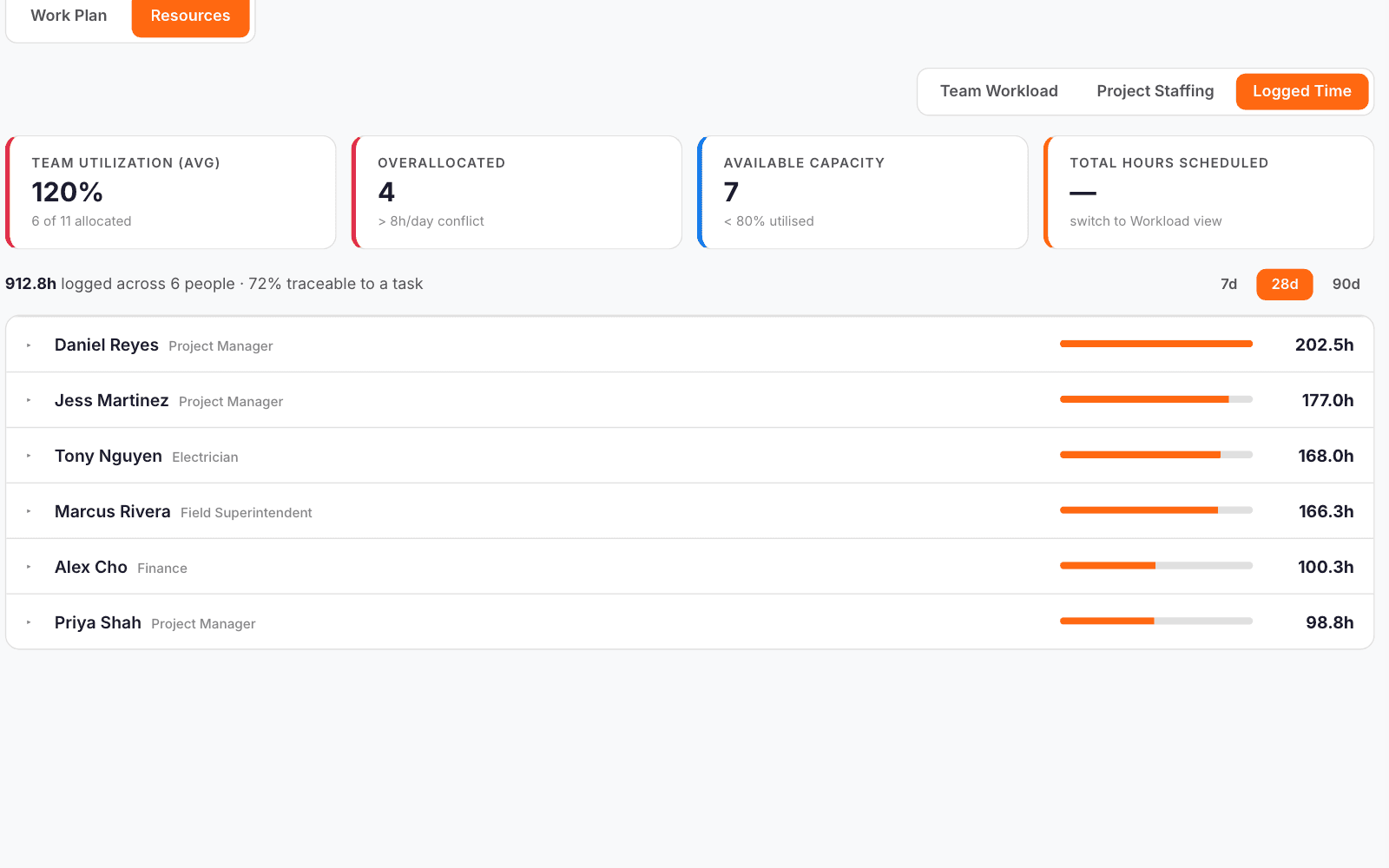
Logged Time shows the hours each person logged over 7, 28 or 90 days, split by job and by task.