How to use the WorkHoist Field app: clock in, tasks, photos and the daily log
WorkHoist Field is the app your office gave you for the job. It does four things: clock in and out on your tasks, show you what's on today, take photos, and file the daily log. It works with no signal and sends everything when you're back on one. Free for every operator.


1. Get in
Install WorkHoist Field from the App Store or Google Play. Open the email your office sent you, set your password on the web first, then sign in to the app with the same email and password. There's nothing to set up in the app. If you have no account or forgot your password, ask your office — accounts are made in WorkHoist on the web.
2. Today
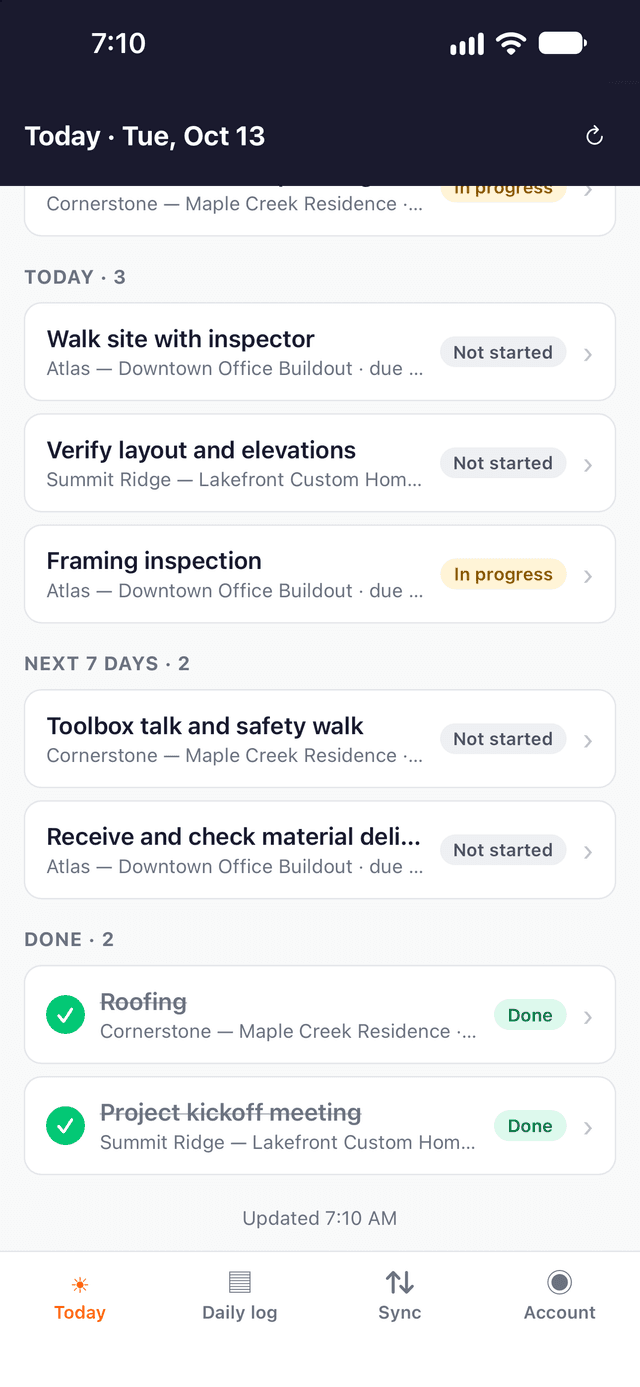
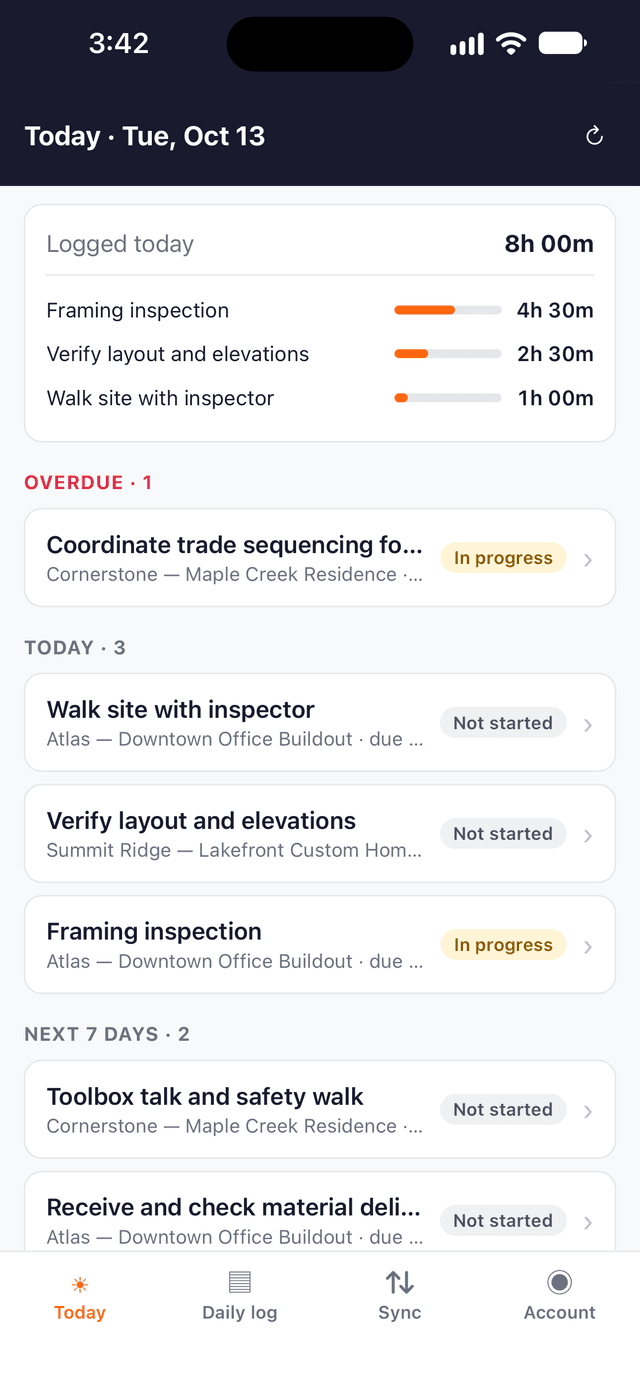
The Today tab is your list for the week: Overdue, Today, Next 7 days, then Done. Each row is the task, the job it's on and when it's due. Tap one to open it. If the list is empty, nothing has been assigned to you for the next week — ask the office.
3. Clock in, clock out
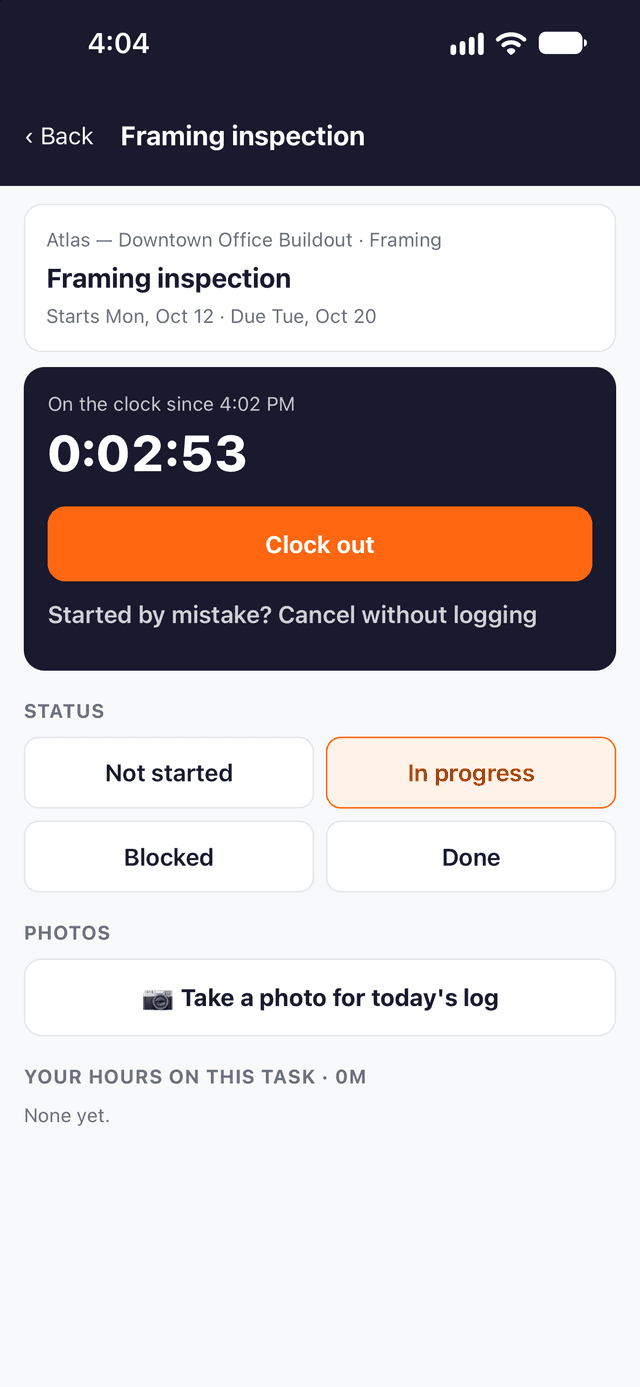
Open the task and tap Clock in. The task goes to In progress and a timer runs on the Today screen so you can see you're on the clock. One task at a time: to switch, clock out of the first one.
At knock-off tap Clock out. The time is set to now — change it if you forgot — add a note if you like ("What did you get done?") and tap Clock out · log 8h 15m. Hours go straight to the job. Started by mistake? Cancel without logging on the task.
4. Status
On the task, tap Not started, In progress, Blocked or Done. The office sees it at once. Use Blocked when you're waiting on something — it's the quickest way to tell them.
5. Photos
On a task, tap Take a photo for today's log. The photo goes into today's daily log for that job. You can also add photos inside the log itself. Camera only; nothing is saved to your camera roll.
6. Daily log
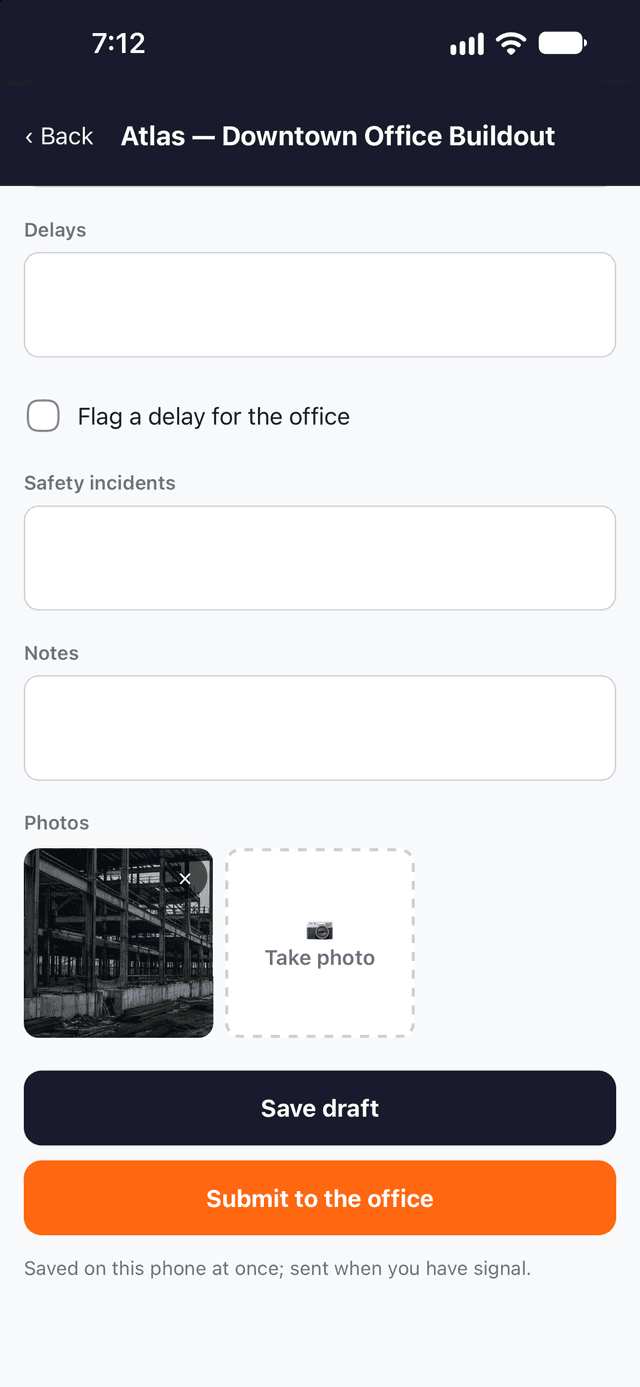
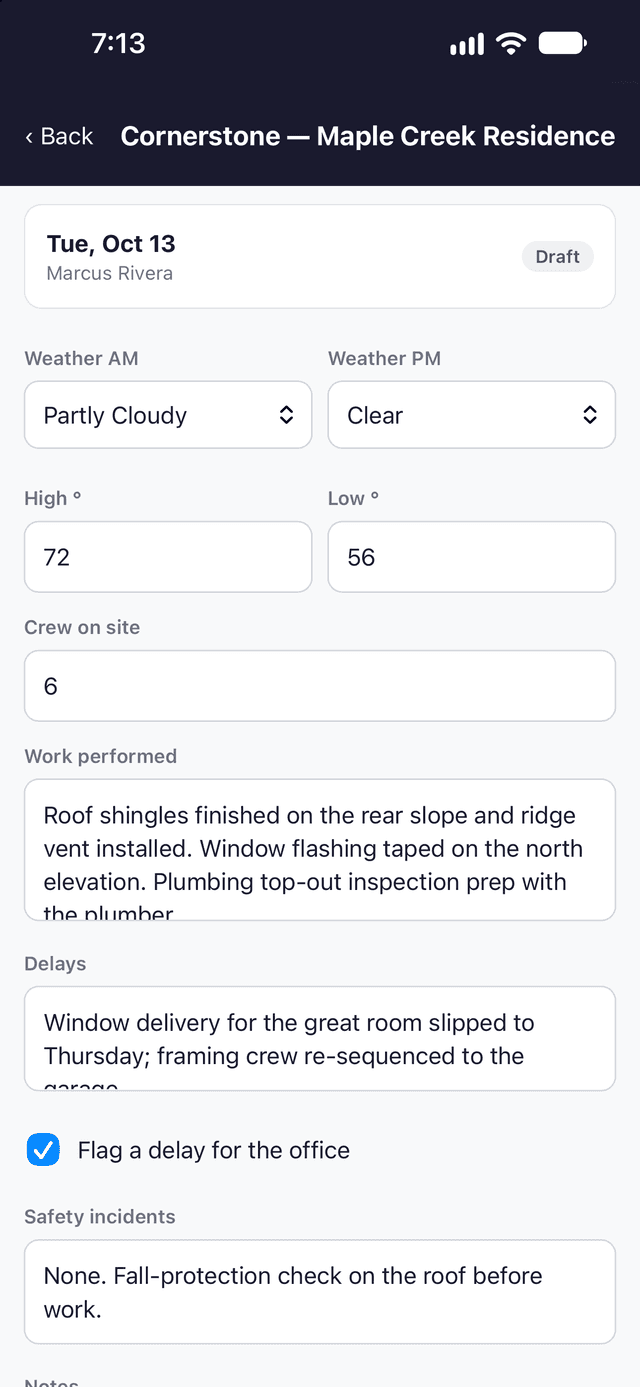
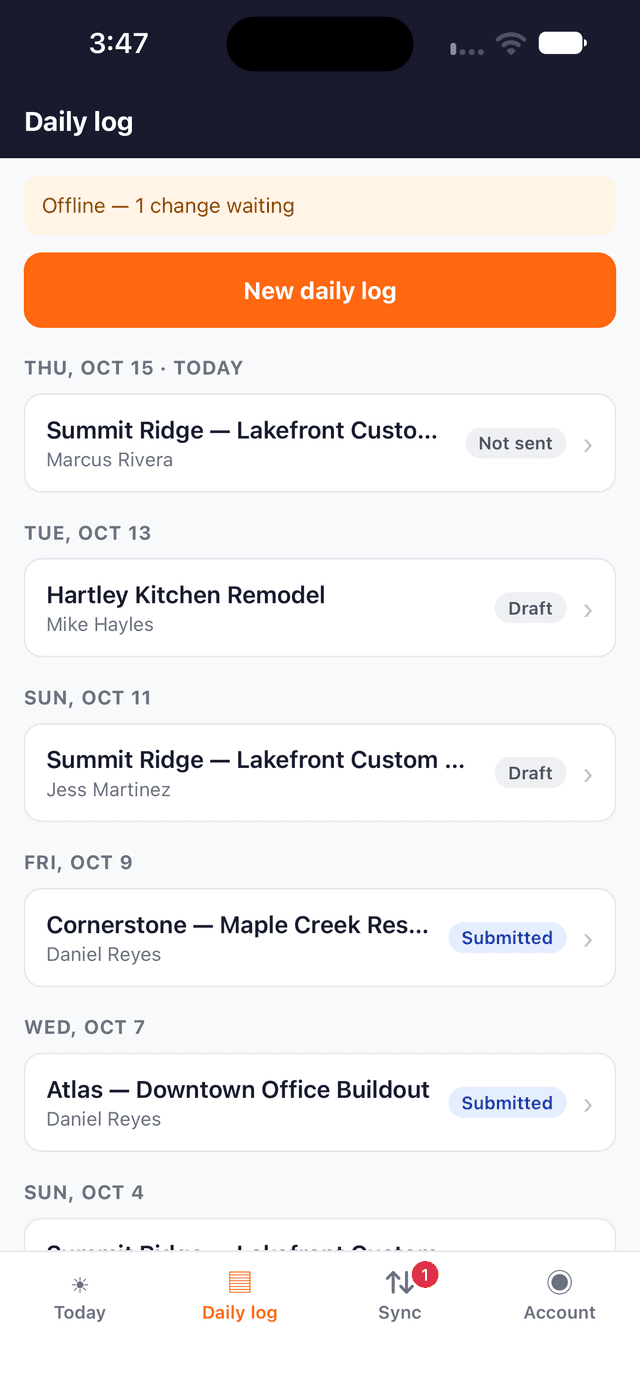
The Daily log tab → New daily log → pick the job and the date. Fill in what's useful: weather, crew on site, Work performed, Delays (tick Flag a delay for the office so they see it), Safety incidents, notes and photos. Save draft to come back to it; Submit to the office when it's done. After you submit, changes are made by the office.
7. No signal
Keep working. Everything saves on the phone and sends when the signal is back — the top of the screen shows "Offline — 2 changes waiting". The Sync tab lists what's waiting; tap Sync now to push it. If something says Needs attention, read the reason and tap Try again, or Discard if it's wrong.
8. End of the day
Clock out before you sign out. Signing out removes your work from the phone, so the app checks everything has been sent first.
Questions about a task or a job go to your office, not WorkHoist — they run the account. WorkHoist is construction management software for contractors; the field app is free for every operator.