Subcontractor compliance and insurance tracking
Every sub’s insurance, workers’ comp and licence in one registry, with expiry flagged early and purchase orders held while cover is lapsed.
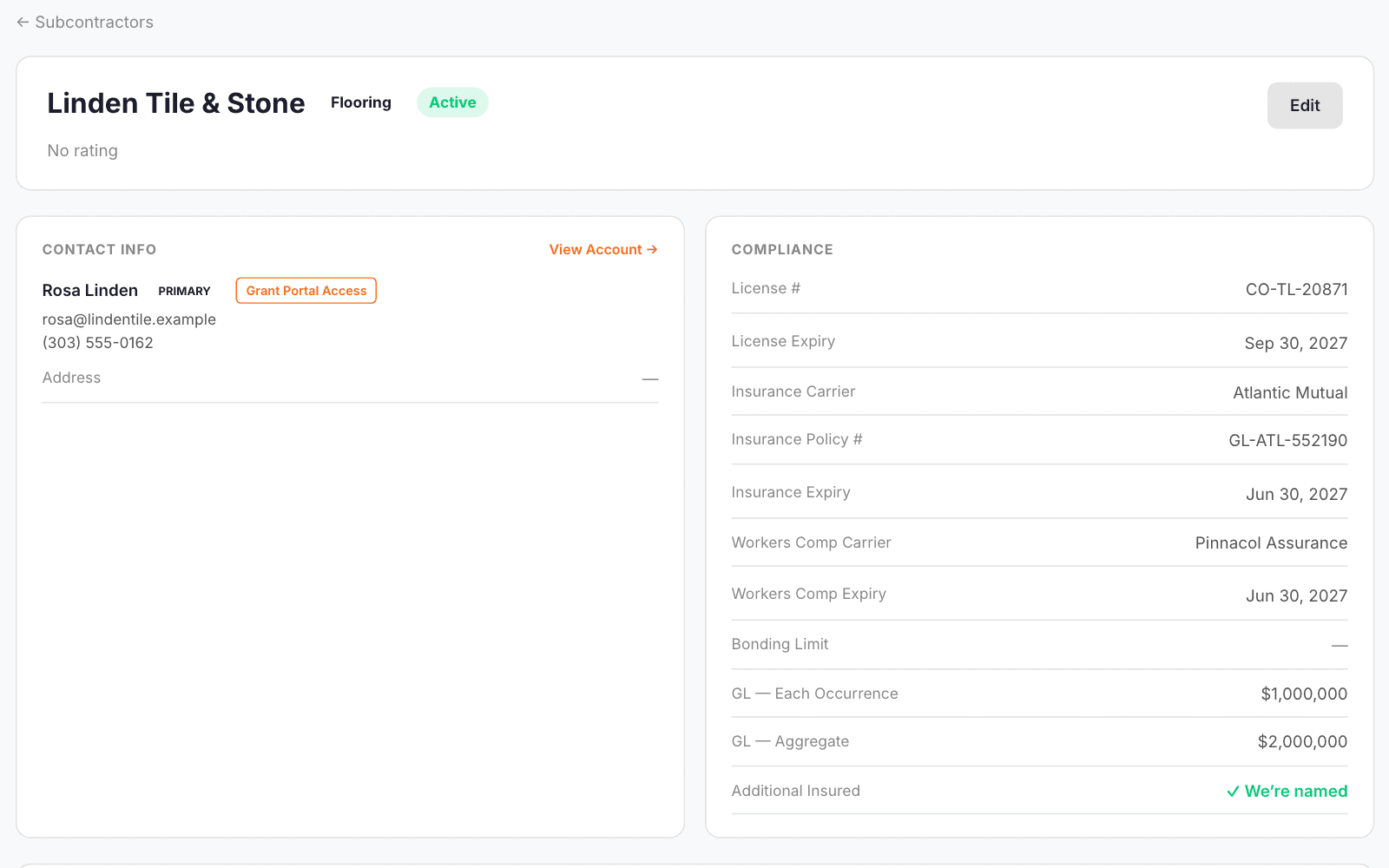
How subcontractor compliance works in WorkHoist
6 stepsEvery sub, with compliance at a glance
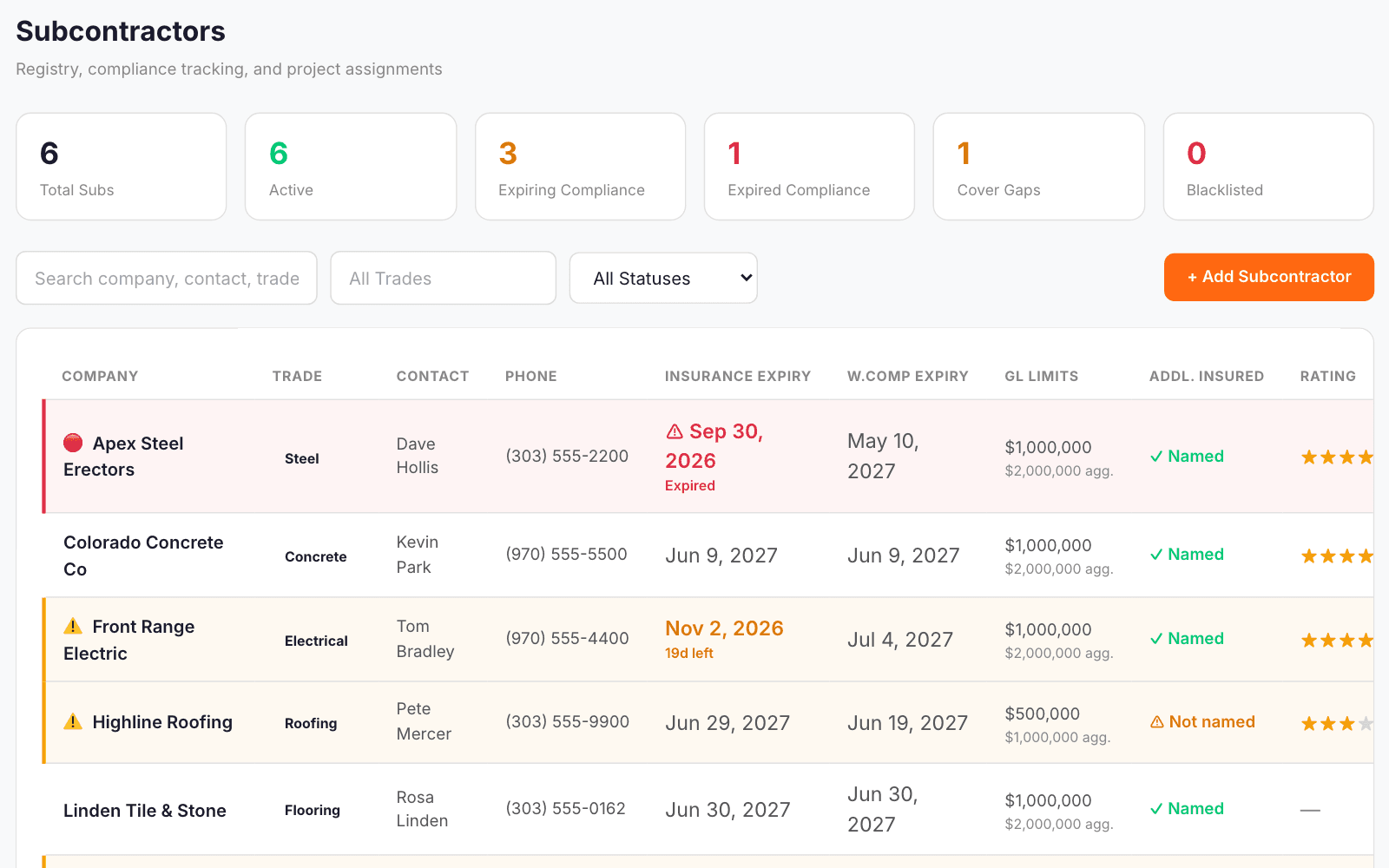
One registry with each sub’s insurance and workers’ comp dates, GL limits and whether you are named as additional insured. Expiring cover shows amber and lapsed cover red, with counts across the top.
Add a sub with their cover
Enter the trade, contact, licence, insurance and workers’ comp carriers, policy numbers and expiry dates, GL limits and additional-insured status. A matching company account is created with it.
Every gap listed, and POs held
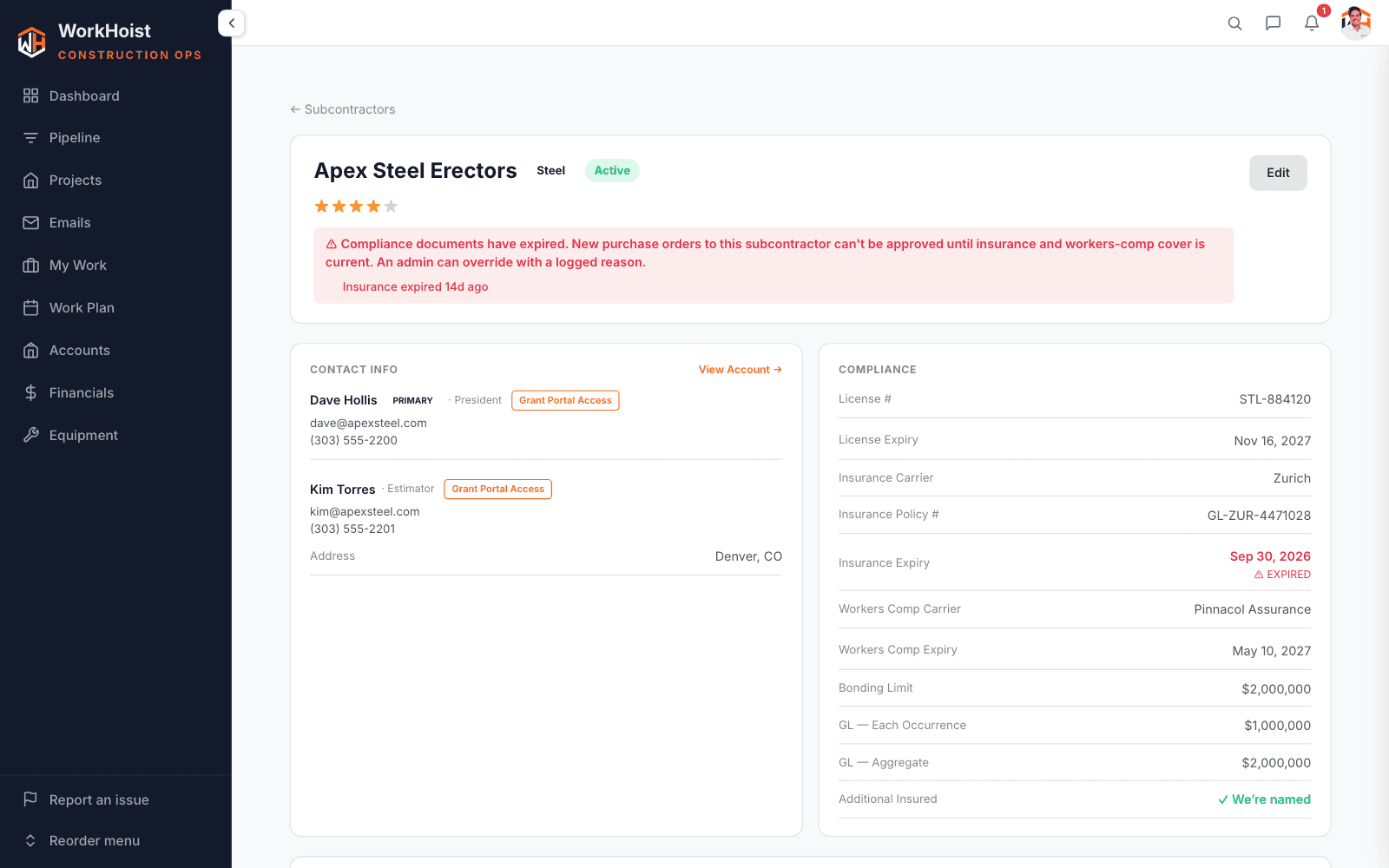
A sub’s page lists every compliance gap in one banner. Approving a purchase order to a sub whose insurance or workers’ comp has lapsed is held until the cover is renewed.
Upload certificates and documents
Attach certificates of insurance, W-9s, licences, bonds and contracts as PDFs or photos, each with its type and expiry date. Files are stored privately and opened through a short-lived link.
Assign the sub to the job
Assign a sub to a job with the phase, scope, contract amount and dates. The job’s Subs view shows contract, paid and remaining for each sub, and flags cover that runs out before the job ends.
Alerts before cover runs out
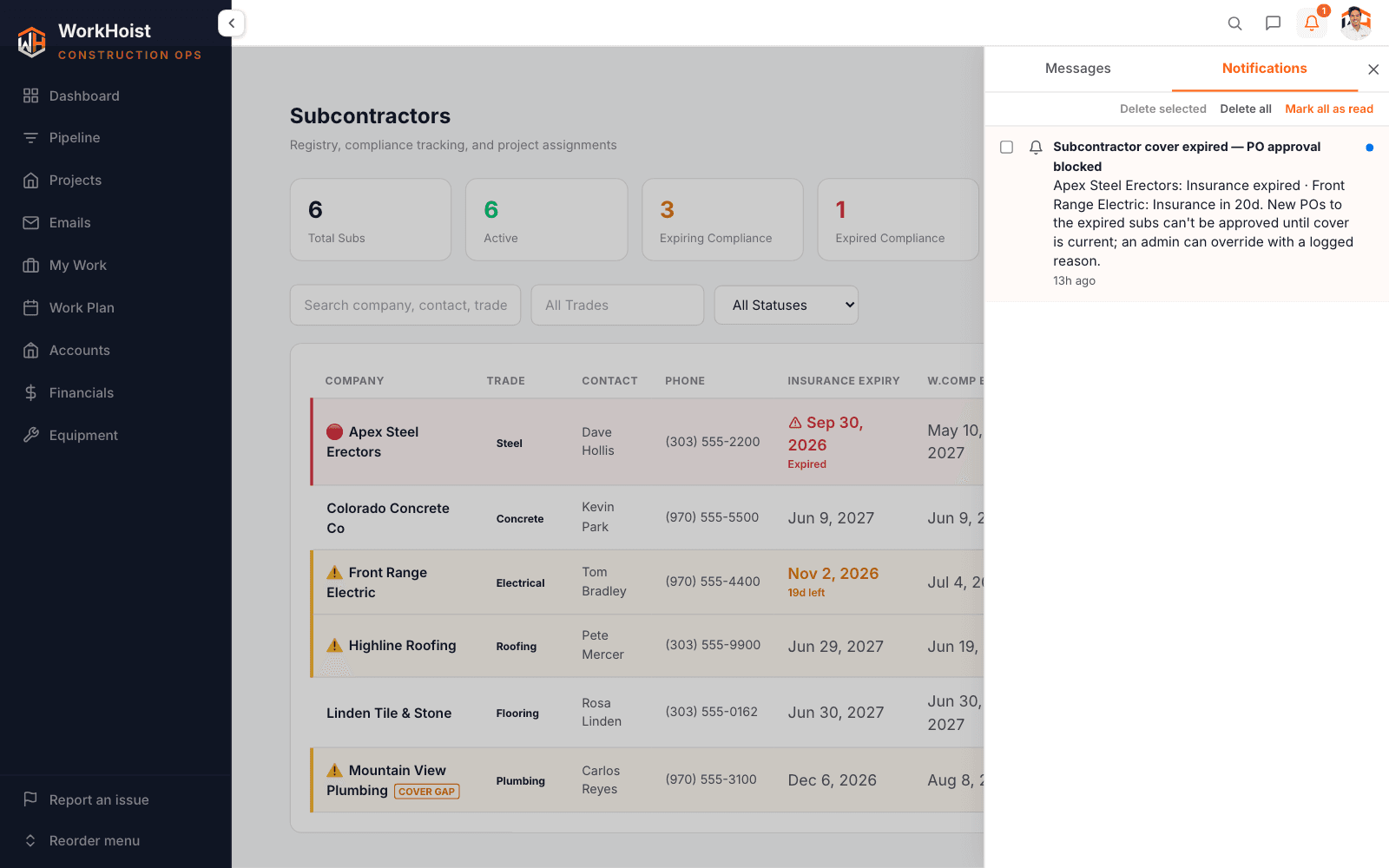
Every morning, admins get an email and an in-app alert as cover reaches 30, 14 and 7 days from expiry, and again when it lapses.