How to connect WorkHoist to QuickBooks Online
This guide is written by the team behind WorkHoist, which sells construction software — read it with that in mind. It is about WorkHoist’s own QuickBooks Online connection: what it sends, what it never does, and how to set it up. The last section says where it stops.
Last updated
The short answer
An admin or finance user of a US company connects QuickBooks Online from Settings, Integrations, approves the connection at Intuit, and runs the setup: the QuickBooks company’s own settings, the items and accounts WorkHoist posts to, and the matching of clients, projects and suppliers to QuickBooks customers, jobs and vendors. After that, WorkHoist sends invoices, payments received, expenses, bills and bill payments to QuickBooks Online one way, when someone clicks Send. Each record goes once and is updated after, the total QuickBooks stores must match WorkHoist’s to the cent or nothing is left there, and nothing WorkHoist did not create in QuickBooks is ever changed.
What WorkHoist sends, and what it never does
Five kinds of record go to QuickBooks Online, each from its own screen in WorkHoist:
- Invoices, once sent or paid: one line per billed line, retainage held as a negative line on a Retainage item, and the sales tax exactly as WorkHoist worked it out.
- Payments received on those invoices, after the invoice, against it.
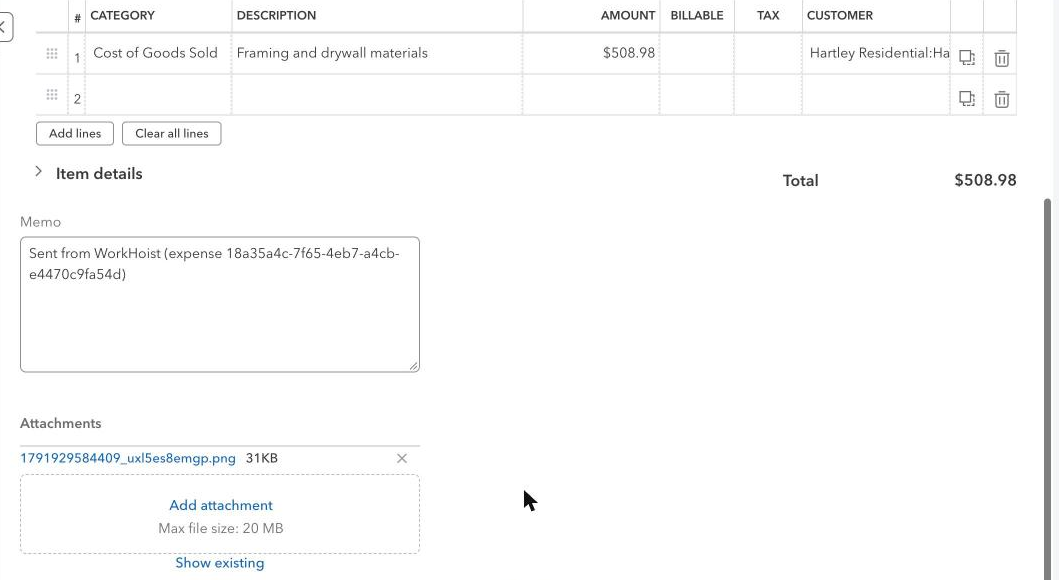
- Expenses on a project and overhead expenses, as QuickBooks expenses paid from the account you choose, with the receipt attached.
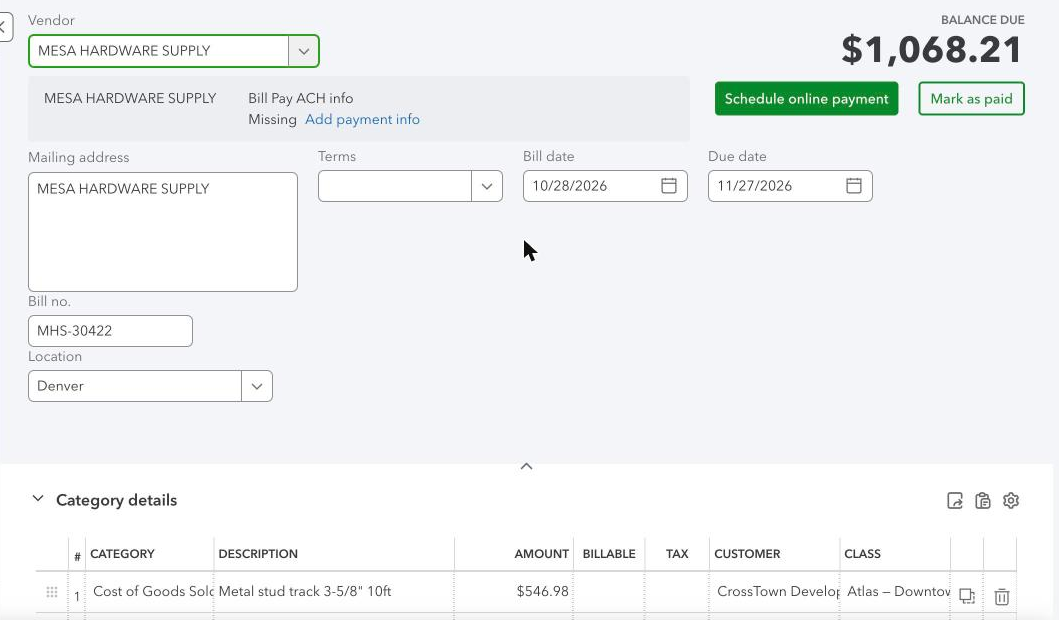
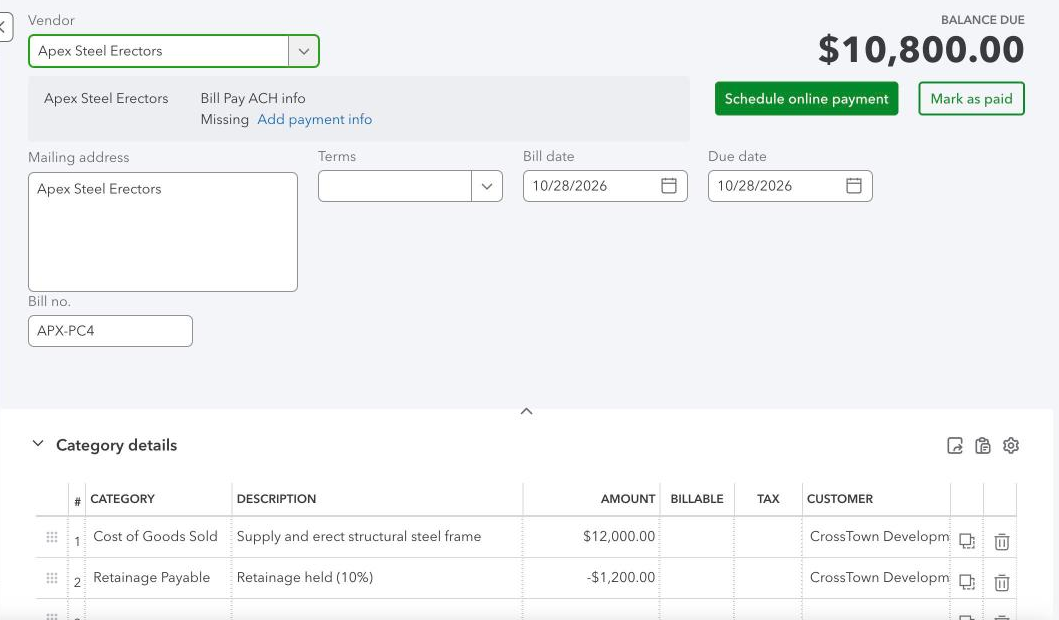
- Bills from suppliers and subcontractors, once approved: each line on its cost code’s expense account (or the default), the job set to the project, the scanned invoice attached, and retainage held on a sub bill as a negative line on Retainage Payable.
- Bill payments, after the bill, against it.
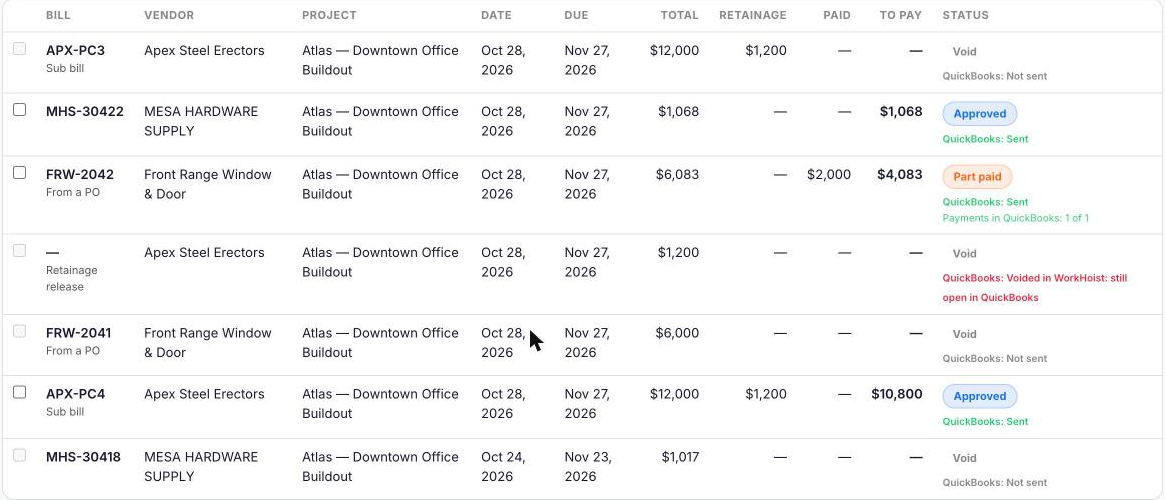
It is one way and it is never automatic. Nothing goes until someone clicks Send. The first send creates the record in QuickBooks and every later send updates that same record, so one WorkHoist invoice is one QuickBooks invoice however many times it is sent. If QuickBooks stores a different total from WorkHoist’s, to the cent, the send is undone and fails, naming both totals. WorkHoist never edits, voids or deletes anything in QuickBooks it did not create, and when a record is voided in WorkHoist after it was sent, it stays open in QuickBooks and WorkHoist says so.
Before you connect
- You need an admin or finance role in WorkHoist. Project managers and field users do not see the QuickBooks card.
- Your company must be a US company in WorkHoist. QuickBooks for UK companies is not available yet.
- It is QuickBooks Online. QuickBooks Desktop is not supported.
- Someone who can approve apps for the QuickBooks company signs in at Intuit during the connection.
- The QuickBooks company keeps its books in the same currency as WorkHoist. If it does not, nothing is sent, and setup says so first.
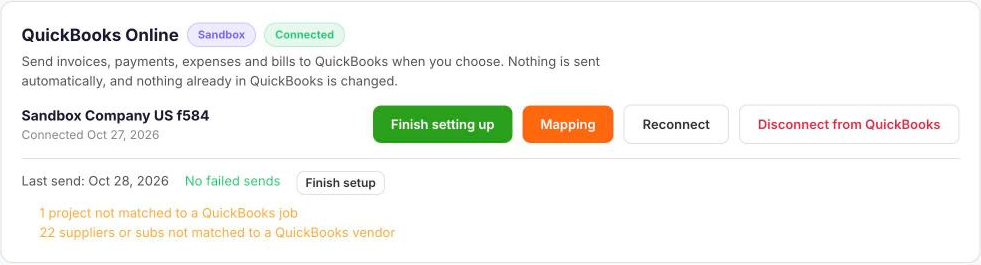
If the card offers to set QuickBooks up with you on a call instead of a Connect button, book a time from the card and the connection and setup are done together.
Connect, then run the setup
In Settings, Integrations, click Connect to QuickBooks, sign in at Intuit and choose the company. Back in WorkHoist, the setup opens by itself. You can open it again any time from the card. It has four steps, plus a fifth when QuickBooks tracks classes or locations.
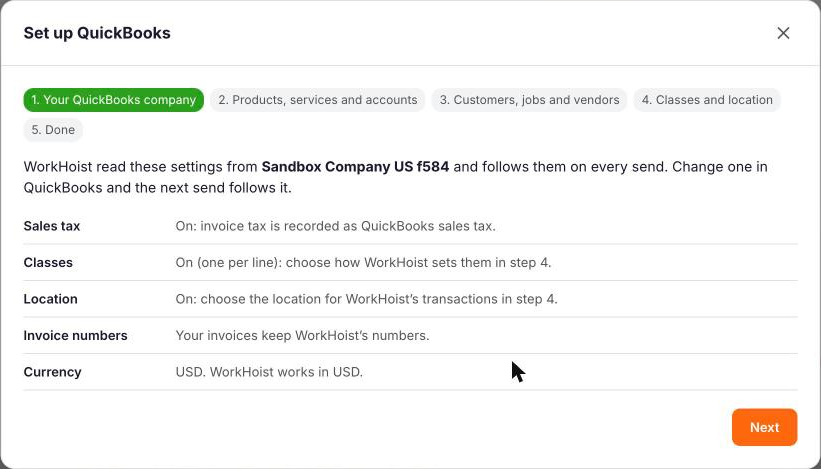
1. Your QuickBooks company
WorkHoist reads the QuickBooks company’s own settings: whether sales tax is on, whether classes and locations are tracked, whether QuickBooks numbers invoices itself, and the home currency. It follows them on every send, so a setting changed in QuickBooks applies to the next send without reconnecting.
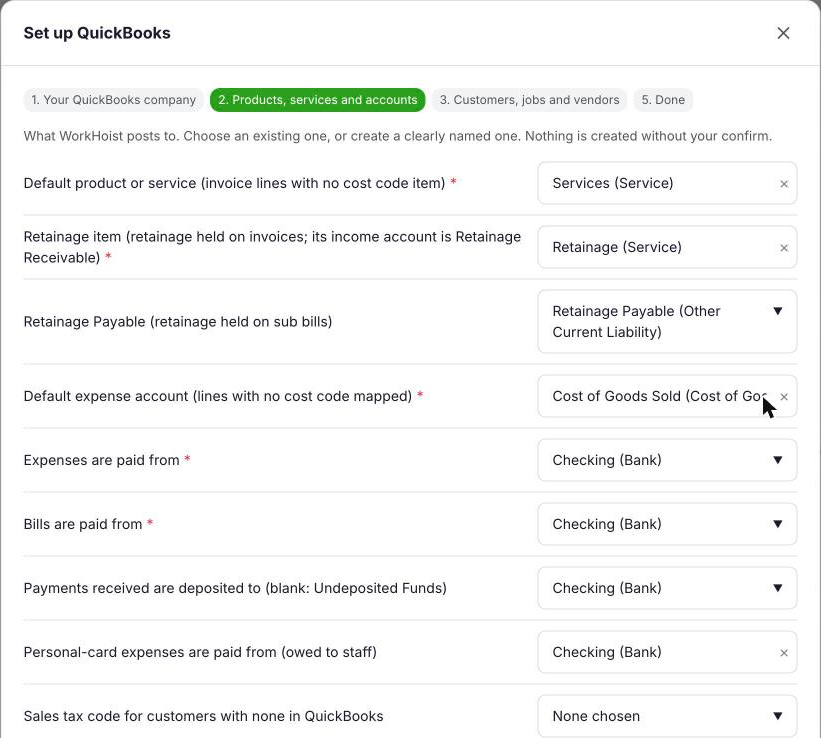
2. Products, services and accounts
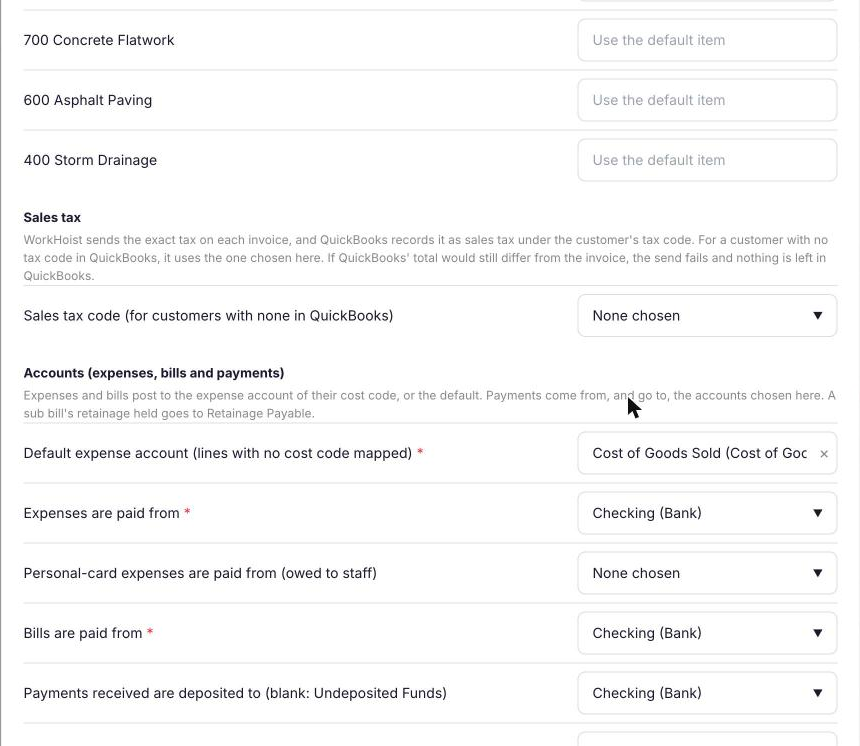
What WorkHoist posts to: a default item for invoice lines, a Retainage item, Retainage Payable for sub bills, a default expense account, and the accounts expenses and bills are paid from and payments are deposited to. For each, choose an existing record, use the suggestion, or create a clearly named one. The suggested retainage setup is an account called Retainage Receivable with a Retainage item whose income account it is, and an account called Retainage Payable. Nothing is created in QuickBooks without your confirm, and if one by that name already exists WorkHoist uses it instead of making a second.
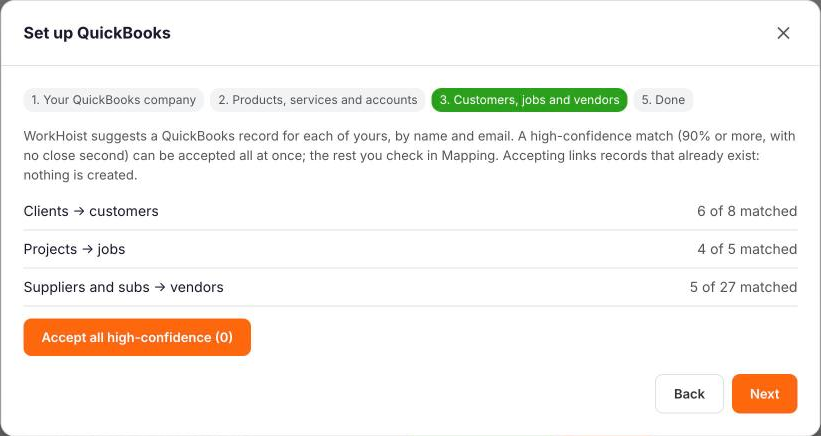
3. Customers, jobs and vendors
WorkHoist suggests a QuickBooks customer for each client, a job under that customer for each project, and a vendor for each supplier and sub, by name and email, with a confidence. Accept all high-confidence links only the ones with a clear match at 90% or more; a tie is left for you. Accepting only links records that already exist. The rest you match, or create on confirm, in Mapping.
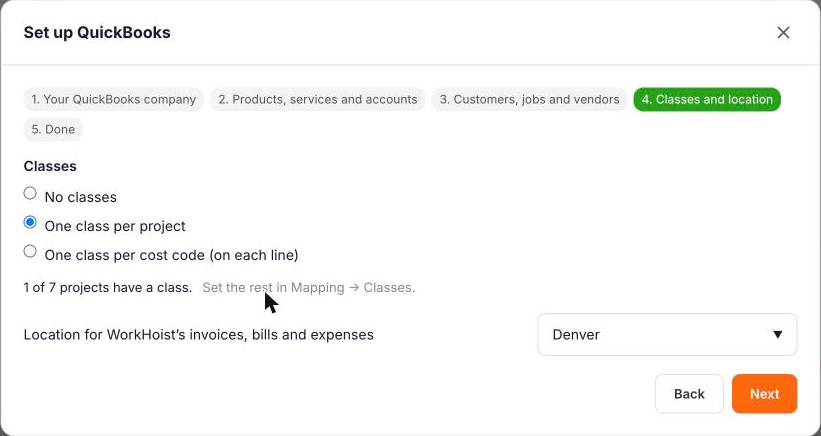
4. Classes and location
Only when QuickBooks tracks them; class tracking is a QuickBooks Online Plus and Advanced feature. Classes can be set by project or by cost code; by cost code needs QuickBooks set to assign classes one to each row in a transaction. Match by name links each project or cost code to the QuickBooks class with the same name. A location chosen here goes on every invoice, bill and expense. QuickBooks
5. Done
The last step lists anything still to choose. You can finish and come back: a send that needs a missing choice fails and names it.
Sending records
Each invoice, expense and bill shows its QuickBooks status where it is listed: Not sent, Sent, Changed since sent, Voided in WorkHoist: still open in QuickBooks, or Failed with the reason. Send one from its own screen; on the invoice and bill lists you can also select several and send them together.

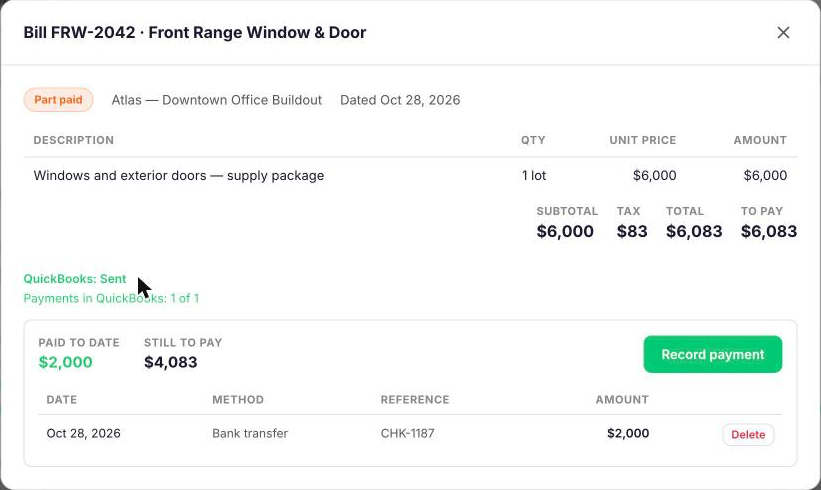
An invoice that is already paid goes with its payments: the invoice first, then each payment against it. A bill’s payments go after the bill the same way, and the bill shows how many of them are in QuickBooks.
An invoice keeps its WorkHoist number in QuickBooks, so the client pays against the number on the PDF and the bookkeeper finds that same number in QuickBooks. If you would rather QuickBooks numbered new invoices itself, the setup has an option for it, off unless you choose it; it applies while QuickBooks’ Custom transaction numbers setting, the one for numbering invoices yourself, is off. An invoice already in QuickBooks always keeps the number it has. QuickBooks
Retainage in QuickBooks
On an invoice, the retainage held is a negative line on the Retainage item, so the invoice total is what the client owes now. On a sub bill, the full cost goes on the expense lines and the retainage held is a negative line on Retainage Payable, so the bill’s balance in QuickBooks is what WorkHoist says is owed. A retainage release is its own bill, on Retainage Payable, for the amount released.
When a send fails
The QuickBooks card lists every record whose last send failed, with the reason and Intuit’s reference number for that request, and a Retry button. It also lists what is still blocking sends: a default not chosen, projects not matched to a job, suppliers not matched to a vendor. Fix the cause, then Retry; a payment or receipt is retried through the invoice or bill it belongs to.
Where WorkHoist helps, and where it does not
It saves typing the job’s money into QuickBooks twice, and it keeps the two in step on totals: what QuickBooks says an invoice or bill comes to is what WorkHoist says, to the cent.
Questions contractors ask
- What does WorkHoist send to QuickBooks Online?
- WorkHoist sends invoices, payments received, expenses, bills and bill payments to QuickBooks Online, one way, when someone clicks Send: invoices once sent or paid, project and overhead expenses with their receipts, approved bills with the scanned invoice attached, and the payments on each. It never changes anything in QuickBooks it did not create.
- Does anything come back from QuickBooks into WorkHoist?
- No. WorkHoist’s QuickBooks Online connection is one way: it sends records to QuickBooks and reads nothing back. A payment recorded in QuickBooks, or an invoice edited there, does not change WorkHoist.
- Will sending an invoice twice create a duplicate in QuickBooks?
- No. The first send creates the QuickBooks invoice and every later send updates that same invoice, and the same is true of expenses, bills and payments. If a send is interrupted after QuickBooks created the record, the next send finds it and updates it rather than creating another.
- How does WorkHoist handle retainage in QuickBooks?
- Retainage held on an invoice is a negative line on a Retainage item, whose income account is suggested as Retainage Receivable. Retainage held on a subcontractor’s bill is a negative line on a Retainage Payable account, so the bill’s balance in QuickBooks matches what WorkHoist says is owed. A retainage release is its own bill on Retainage Payable.
- Does WorkHoist work with QuickBooks Desktop?
- No. WorkHoist connects to QuickBooks Online only. QuickBooks Desktop, QuickBooks Time, QuickBooks Payroll and QuickBooks Payments are not connected.
- What happens if QuickBooks calculates a different total?
- The send fails and is undone: a record WorkHoist just created in QuickBooks is deleted again, and one it updated is put back as it was before that send. The failure names both totals.
- Who can connect QuickBooks to WorkHoist?
- An admin or finance user of a US company in WorkHoist, together with someone who can approve apps for the QuickBooks Online company at Intuit. Project managers and field users cannot see or use the QuickBooks connection.
Sources
- QuickBooks Online help — Turn on class tracking
- QuickBooks Online help — Add custom transaction numbers to sales forms
The two statements about QuickBooks settings link to QuickBooks’ own help centre, opened in a browser and confirmed to carry the text cited on the date this page was last updated. Every statement about WorkHoist was checked against WorkHoist’s code on the same date. The screenshots are of WorkHoist’s demo company connected to an Intuit sandbox company.